This guide was written by @1selxo. You can reach me on Discord if you have better tools or improvements.
Disclaimer: The tools used in this guide are not new or original creations. This document aims to be a comprehensive, Android-only guide for Japanese language immersion (and other uses) by enabling the full desktop version of Anki on your device.
- 🎯 Goal
*
⚠️ Storage Requirement - 🛠️ Prerequisites *🚀 Step-by-Step Installation Guide *🎮 VN Mining on Android *📖 Reading and Mining LNs/Manga, Watching and Mining Anime
- 🪄 Hacks That Make Everything Easier
- ⚡ Very, Very Optional: Run Local Audio Sync Server on Android
The primary goal of this setup is to install and manage Anki add-ons, which are not supported by the standard AnkiDroid app.
For daily reviews, it is still highly recommended to use AnkiDroid after syncing your collection from the desktop client. This setup is for maintenance, card creation with complex add-ons, and management.
Surprisingly not much anymore!
Quick Note: This is a Linux installation, basically an entire PC on your phone. If you really want, you can do most simple tasks on this if you know your way around Linux. You can even install a browser with Yomitan, use AnkiConnect, and mine with it (untested), but I recommend doing as many Android-native tasks as possible. Also, AnkiDroid has announced incoming add-on support, so you can skip right to the immersion content when that drops!
Before you begin, you will need to install the following applications on your Android device:
- Termux: A powerful terminal emulator and Linux environment for Android.
- RealVNC Viewer: A VNC client to access the graphical desktop environment we will be creating.
Follow these steps carefully. The process involves setting up a full Debian Linux environment inside Termux.
First, we'll set up the base Linux environment. Open Termux and run the following commands in order.
-
Update Termux packages:
pkg upgrade
-
Install
proot-distroand the Debian distribution:proot-distro install debian
-
Log in to your new Debian environment:
proot-distro login debian
Your terminal prompt should now change, indicating you are inside Debian.
Now, we'll install a desktop environment and create a user account.
-
Update Debian's package lists:
apt update && apt upgrade -
Install
sudo:apt install sudo
-
Install the XFCE4 desktop environment and TigerVNC server:
sudo apt install xfce4 tigervnc-standalone-server dbus-x11
-
Create a new user account. Replace
<your_username>with a username of your choice.adduser <your_username>
You will be prompted to create a password and fill in some optional user information.
-
Grant your new user
sudoprivileges. This is a critical step.- Open the
sudoersfile with thenanotext editor:nano /etc/sudoers
- Using the arrow keys, scroll down until you find the line
root ALL=(ALL:ALL) ALL. - Add the following line directly below it, replacing
<your_username>with the username you created:<your_username> ALL=(ALL:ALL) ALL - To save and exit, press Ctrl+X, then Y, then Enter.
- Open the
-
Switch to your new user account:
su <your_username>
Now we'll start the graphical desktop and connect to it.
-
Launch the VNC server:
vncserver -xstartup /usr/bin/startxfce4 -localhost no
The first time you run this, it will ask you to set a password. Remember this password. This is what you will use to connect from RealVNC.
-
Connect with RealVNC:
- Open the RealVNC Viewer app on your phone.
- Tap the
+button to create a new connection. - In the "Address" field, enter
localhost:1. - Give it any name you like.
- Connect, and when prompted, enter the password you just set in the terminal.
You should now see a complete XFCE Linux desktop environment on your screen!
Open a terminal window inside the Linux desktop you are connected to via VNC. Now, copy and paste the following commands to install Anki.
-
Install Anki's dependencies:
sudo apt install python3-pyqt6.qt{quick,webengine,multimedia} python3-venv -
Create a Python virtual environment for Anki:
python3 -m venv --system-site-packages pyenv
-
Upgrade pip within the virtual environment:
pyenv/bin/pip install --upgrade pip
-
Install Anki (
aqt) into the virtual environment:pyenv/bin/pip install --upgrade --pre aqt
-
Run these commands to apply fixes for graphics and library issues:
apt-mark hold libpci3
echo software > ~/.local/share/Anki2/gldriver6
To run Anki, you must use a specific command that disables a sandbox feature incompatible with the Termux environment.
-
Launch Anki with the required flag:
QTWEBENGINE_CHROMIUM_FLAGS="--disable-seccomp-filter-sandbox" pyenv/bin/ankiAnki should now launch! You can log in, download your collection, and install any add-ons you need.
-
To run Anki in the future: You will need to use the same command every time. To make this easier, consider creating a script.
To avoid typing the long command every time, you can create a simple executable script on your Linux desktop.
-
In the Linux terminal, create a new file:
nano ~/run-anki.sh -
Paste the following text into the file:
#!/bin/bash
QTWEBENGINE_CHROMIUM_FLAGS="--disable-seccomp-filter-sandbox" ~/pyenv/bin/anki
-
Save and exit (Ctrl+X, Y, Enter).
-
Make the script executable:
chmod +x ~/run-anki.sh
Now you can simply open a terminal and run ./run-anki.sh to start Anki, or even create a desktop launcher that executes this script.
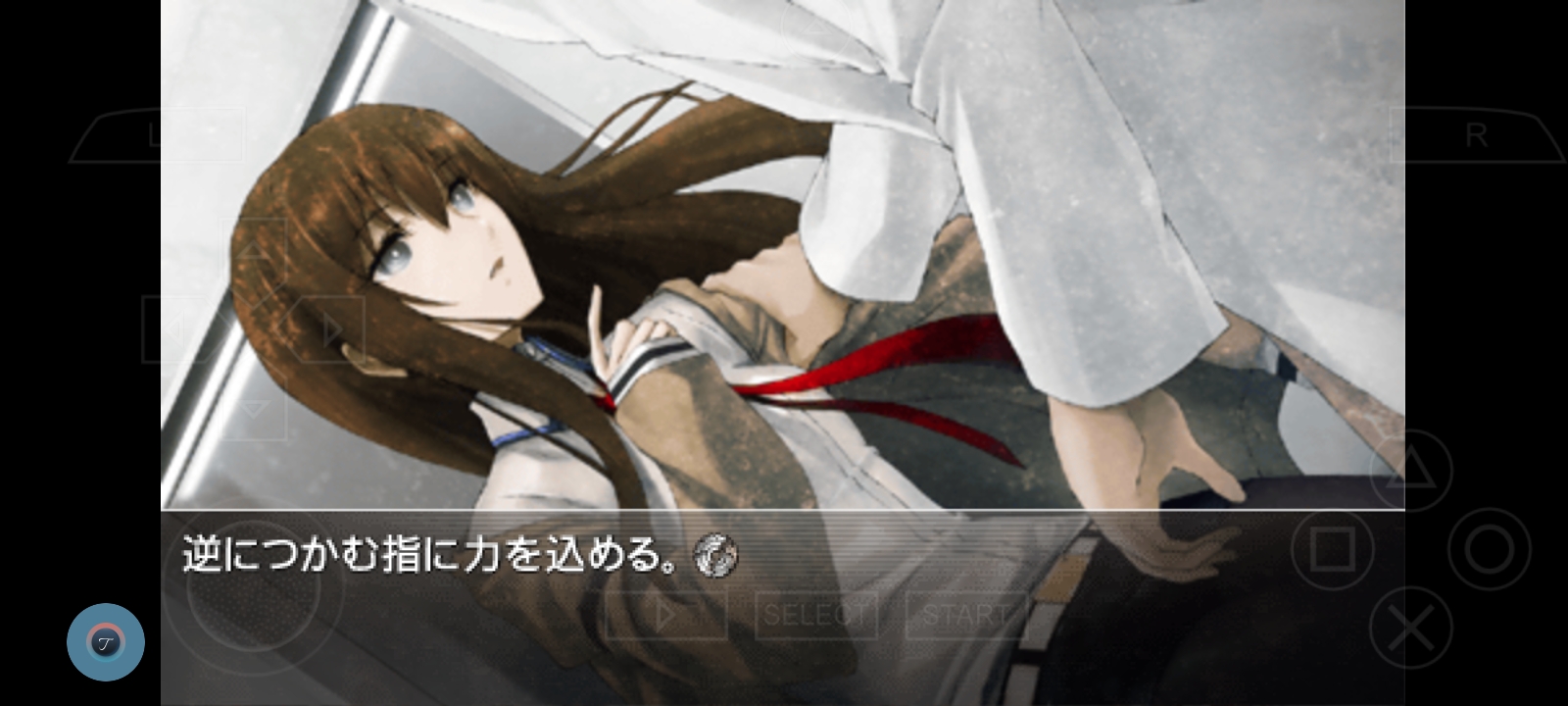
There are many ways to run VNs on Android, most notably PPSSPP, Vita3k, Kirikiroid2, and ExaGear. This guide isn't for running the VNs but for mining them.
Keep in mind this is just OCR; it might have mistakes, but up until now, it has been really good with me.
Once downloaded and installed:
-
Open Accessibility Settings and give it all permissions needed.
-
Then go to OCR Settings and choose the OCR language as Japanese.
-
Next, go to Manage Dictionaries and load in your Yomitan dictionary zips.
-
Last step: configure AnkiDroid to your deck and mining note. I use Lapis, and this is how I set it up:


To do lookups, double-tap on the floating circle, then tap the checkmark (✓). Export to Anki using the up arrow (⬆️).
###MANATAN! ALL IN 1 MODERN IMMERSION TOOL
Installation and Usage Guide:
Step 1: Download the app.
Step 2: Open the app and pick what language you are studying.
Step 3 (Optional but extremely convenient for Japanese learners): Create a Jimaku account, acquire an API key, and put it into Manatan's API key settings.
Step 4: Importing dictionaries and setting up mining
-
Go to More in the bottom left and press Manatan settings.

-
Scroll down and import new dictionaries.

-
Scroll down more and enable Anki. Also, select your deck/card type (Manatan autofills fields for popular card types).


Step 5: Acquiring Manga / LNs / Anime
-
Go back to the More page and now press Settings (the standard settings, not Manatan's).

-
Go to Browse.

-
Paste this link into Anime extensions.
-
Paste this link into Manga extensions.
-
Go back to the main page of the app and navigate to Browse.

-
Install your target language's sources for manga.

-
Install your favorite anime extensions (I like Aniwatch, but it's personal preference).

-
Now it's as simple as finding an anime/manga and then simply watching/reading!


💡 Hint: You can use a local source for anime and a local source for manga if you don't find what you need in the extensions.
For LNs, you must find your own, import the Epub, and then read!


To automate your workflow, the Key Mapper app is essential. You can map your volume buttons to perform complex actions, saving you a lot of time.
- Download my personal Key Mapper settings to import a pre-configured setup.
- Press Volume Up or Volume Down once to reveal the current card.
- Press Volume Up once to mark the card as FAIL.
- Press Volume Down once to mark the card as PASS.
- Double-press Volume Up to UNDO the last action.
- Double-press Volume Down to reveal the glossary section in a Lapis note.
This setup makes mining from emulated VNs (like PPSSPP/Vita3K) incredibly smooth.
- Map the
⭕button (or whichever button advances text) to Volume Up. - Keep your Tekisuto floating icon in a fixed position on the screen.
- In Key Mapper, map a Double-press of Volume Down to a Double Tap action at the exact coordinates of your Tekisuto icon.
With this, you can play the game and create cards using only your volume buttons. I recommend setting the on-screen controls to ~15% opacity to avoid interfering with OCR accuracy.
In Termux, copy-paste these in order:
pkg update && pkg upgrade -y
pkg install rust protobuf git -y
cargo install --locked --git https://github.com/ankitects/anki.git --tag 25.02.5 anki-sync-server
echo 'export PATH="$HOME/.cargo/bin:$PATH"' >> ~/.bashrc
source ~/.bashrc
This will run the server:
SYNC_USER1=yourusername:yourpassword anki-sync-serverTo avoid typing the long command every time, you can create a simple sync shortcut that starts the server automatically.
- Open your Termux configuration file using the
nanotext editor:nano ~/.bashrc - Add the following line to the bottom of the file. Be sure to replace
yourusername:yourpasswordwith your actual credentials!alias sync='SYNC_USER1=yourusername:yourpassword anki-sync-server'
- Save and exit the editor by pressing Ctrl+X, then Y, then Enter.
- Apply the changes to your current Termux session:
source ~/.bashrc
Now, you can simply type sync and press Enter in Termux to start your local sync server.