
Workbench to animate cameras and objects, record and play videos

- Create animations of cameras and objects separately or simultaneously, showing the details of your project.
- Ability to create cameras/objects animations between two chosen points, making them follow a path or rotating them on a fixed base/axis.
- Camera targets can be free, fixed, or mobile with the option to make them follow the path together with the camera.
- Ability to re-edit animations and adjust positions, rotations, and zooming of the cameras.
- If you already have an animation in another workbench, you can add cameras animations and produce render videos with the connection module (see below more details).
- Ability to Play, pause, scrub forward and backward the cameras/objects animations in real time prior to recording.
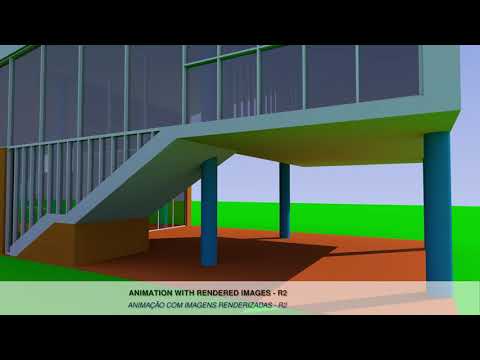
- Create frames from the FreeCAD 3D view or the rendered ones.
- Create videos from them.
- Check the results playing the videos you have created.


FreeCAD ≥ v0.20
- Go to Tools > Addon Manager
- Locate 'Movie Workbench' and install it
- Restart FreeCAD
Result: Reopening FreeCAD will now show Movie workbench available in the workbench selector dropdown.
Expand to read manual installation instructions
- Open FreeCAD and its Python console, and type the following into it:
import os
user_mod_path = os.path.join(FreeCAD.getUserAppDataDir(), 'Mod')
print(user_mod_path)- Click 'Code' button above and 'Download ZIP', then extract its contents as 'Movie' to the indicated Mod folder.
- Restart FreeCAD
- If you want to use the rendered frames, you must install the Render Workbench, prepare rendering projects and test them preventively to make sure everything is working correctly (see information in FreeCAD-Render). It is also recommended to take advantage and use some cameras from this workbench that better show the animation.
- If you want to use an animation from another workbench, script or macro of FreeCAD, it is necessary to prepare the connection module for using them (ex. Modified ExplodedAssembly). For this, see the instructions inside the MovieConnection.py.


- Click on the MovieCamera button
 to create one and to configure it (see the tips showed for each item in the property window - a Movie Camera properties image is shown below).


- Initially, a static camera is created. You can use it like this in a object animation, as a fixed camera. To configure the movie camera to animations between two positions, first, select and activate the Movie Camera you want to configure with the Enable an object for animation button -
 . Position the 3D view with the desired framing to be the start of the animation (Pos A), click on Set position A button -
  . Position the 3D view with the desired framing to be the end of the animation (Pos B), then click on Set position B button -
  . Click on Return to beginning -
  and Move to the end of the animation buttons -
  to confirm the configurations. Make the adjustments you want in the position, rotation, and zoom of the Movie Camera (see Movie Camera properties image below).
 - To make that the Movie Camera follows a route, you must create a segment first to do so. It can be a line, arc, circle, ellipse, B-spline or Bézier curve, from Sketcher or Draft Workbenches. Select the segment created in Cam_Route_Selection property. Configure the remaining camera properties.
- To keep the movie Camera on a fixed base, you can use the Set position A - and Set position B - buttons method explained, for example. Use the same position for then, adjusting the remaining settings as desired (rotation, zoom, steps, target, etc.).
- The targets of the Movie Cameras can be adjusted to follow paths, fixed or mobile points or objects or living free to permit use of rotations angles, for example.
- To create animations of cameras and objects simultaneously, prepare one or more movie camera animations (according to the previous instructions) then create the objects animations (see instructions below) and include them in sequence in Cam_5ObjectsSelected property, in Cam_6Enable one, chose 'Camera and objects'.
- To apply animation from another workbench, you have to use one that the connection module be already prepared to communicate with, if so, select the workbench you want to work in Cam_3Connection property.
- To perform an animation, first select one or more MovieCameras -
 you want to animate , the sequence of Movie Cameras selected will be the one adopted for the animation. Run a round trip in the animation with the Move to the end - and Return to beginning - to reset all the steps of the animation in their initial positions. Then click on Play the animation button -
  . You can play backwards too - Play backward the animation button -
  . If a connection is previously configured and activated in the movie camera properties, objects related to this connection will be animated as well.
 - Use the Return to beginning - , Take a step back -
 , Pause the animation -
  , Move one step forward -
  and Move to the end - buttons as needed. They will also work with the objects or workbench animations connected, if so.


- Select the objects you want to animate, click on the MovieObjects button -
 to create one and to configure it (see the tips showed for each item in the property window - a Movie Objects properties image is shown below). These initial placements of the objects will be saved, and they can be rescue when you delete the movie objects with the Exclude a MovieObjects button -
  .
.


- To configure the MovieObjects to animations between two positions, first, select and activate the MovieObjects - you want to configure with the Enable an object for animation icon - . Position each object at the desired position and angles to be the start of the animation, click on Set the Position A button - . Now, position each object at the desired position and angles to be the end of the animation, then click on Set the Position B button - . Click on Return to beginning - and Move to the end - of the animation buttons to confirm the configurations.
- To make that the Movie Objects follows a route, you must create a segment first to do so. It can be a line, arc, circle, ellipse, B-spline or Bézier curve, from Sketcher or Draft Workbenches. Select the segment created in Objects_Route_Selection property. Configure the remaining object properties.
- To rotate a group of objects around a fixed axis, you have first create a MovieObjects - and set its Pos A and B ( and ), then select only those objects among the group that you want to rotate (first the objects, then the axis) and click on Rotation Axis button -
 . To erase these settings, first click on Enable an object for animation icon - then on Set position B button - .
 - If you want that the objects rotate around their centers of gravity, after create a MovieObjects and set its Pos A and B, habilitate the Objects_RotationCG property (True option).
- You can animate a series of Movieobjects in a desire sequence by clicking on them -
 in the property window accordingly of that and enabling them (with the *Enable an object for animation icon - ). The animation will perform the sequence created.
 - To create animations of cameras and objects simultaneously, you have to prepare one or more movie cameras and objects animations first (according to the previous instructions) and combine them in sequence (cameras with objects) in Cam_5ObjectsSelected property, then in Cam_6Enable one, chose 'Camera and objects'.
- To apply animation from another workbench, you have to use one that the connection module be already prepared to communicate with, if so, select the workbench you want to work in Cam_3Connection property.
- To perform an animation, first select one or more MovieObjects - (objects only) or MovieCameras - (camera and objects) you want to animate, the sequence of selection will be the one adopted for the animation. Run a round trip in the animation with the Move to the end - and Return to beginning of the animation - to reset all the steps of the animation in their initial positions. Then click on Play animation button - . You can play backwards too - Play backward the animation button - . The animation of connected workbenches objects only works when associated with a movie camera (see instructions for movie cameras animation above).
- Use the Return to beginning - , Take a step back - , Pause the animation - , Move one step forward - and Move to the end - buttons as needed.


- Select one or more MovieCameras - or MovieObjects - and click on Clapperboard button -
 to create a Clapperboard -
  , select its icon at the tree objects window to configure its properties (see the tips showed for each item). Execute a complete animation sequence, as previously mentioned.
 - Click the Enable recording button -
 to open the new Recording settings task panel (see image below) and configure the frame and video properties.


- Choose 3D view for record 3D view frames or Render for record rendered ones, choose or confirm the folder to salve the frames.
- Start the recording with the Play animation button - or Play backward the animation button - .
- If You want only to stop recording, click on Stop recording button -
 .
. - If you need to stop the animation, click on Pause the animation button - , it will also stop recording.
- After the animation finished, the video will play automatically if the option Play video is enabled.

- If you want to create the video from the frames, use the Record video button -
 , select the input frames folder and the output video one to save it.
 - If you want to watch a video or re-watch the created one, click on play video button -
 and select the file.


Working with A/B keyframes (cameras and objects) and paths:
1.Positioning and saving cameras and/or objects
To use cameras, position the 3D view at the desired point and click MovieCamera (MC). This will create a static camera, as positions A and B are currently identical. To create a camera movement, reposition the 3D view to the next desired point and click Set position B.
If you wish to create a path through using sequential cameras, select the previous MovieCamera (which already has distinct key frames A and B) and click MovieCamera. This creates a new *MovieCamera based on the previous one, with its A and B positions matching the predecessor's position B. Reposition the 3D view to the next desired point and click Set position B again. To continue the path through, repeat the process; for the final MovieCamera, specify its position B. After finishing and testing the path, delete the duplicate frames (the first frame of the copies). Return to the first step of each copied camera, advance one step, and reset position A for each copy.
If you want a single camera to follow a pre-established route, see item 2.
To set targets for the cameras, see item 2.
If animating objects, position and/or rotate each object, select them as a group, and click MovieObjects (MO). Reposition the objects (adjusting positions and/or rotations) and click Set position B. Repeat this process until the desired animation is complete.
2.Configure the properties of the MCs and MOs if necessary. To do this, select an MC or MO and click Enable object for animation:
Specify a previously created route in the corresponding property of the MC or MO. Specify targets in the MC properties. Specify rotations by axis or CGs in the MO properties. After making changes, click Enable object for animation.
3.Repeat the process for each new A-B position or route.
4.To finish, Select all MCs and MOs and click Clapperboard.
5.Edition of any animation element
5.1.Select the corresponding MC or MO and enable it (by clicking Enable object for animation).
5.2.After making the necessary changes to the MC or MO, save them by clicking Enable object for animation once more.
6.If you create more than one Clapperboard, to switch control between them, select the desired one and use the 'Enable object for animation' button.
7.To end any animation process, click Disable object for animation.
8.To start the recording process, position the Clapperboard animation at the desired starting step and click Enable recording.
9.Configure the recording settings in the open task panel and click OK.
10.To start recording, use the animation buttons (forward or backward). You can also use the other animation tool controls to position the start of the animation at the desired step.
11.To stop the frame and video recording process, click Stop recording.
12.As mentioned, if you wish to (re)create the video from the frames, use the 'Record video' button.
13.If you wish to (re)watch the created video, click the 'Play video' button.
For more information, see the ADDITIONAL_INFORMATION.md (also inside the Movie folder, after the installation). Wiki documentation will be available as soon as possible.
For discussion, please use the Movie Workbench thread in the FreeCAD forum.
LGPL-2.1 LICENCE
Francisco Rosa