

A ZoomIt-like real-time screen annotation tool for Linux/Wayland, written in Rust.
Docs: https://wayscriber.com/docs/
Screenshots
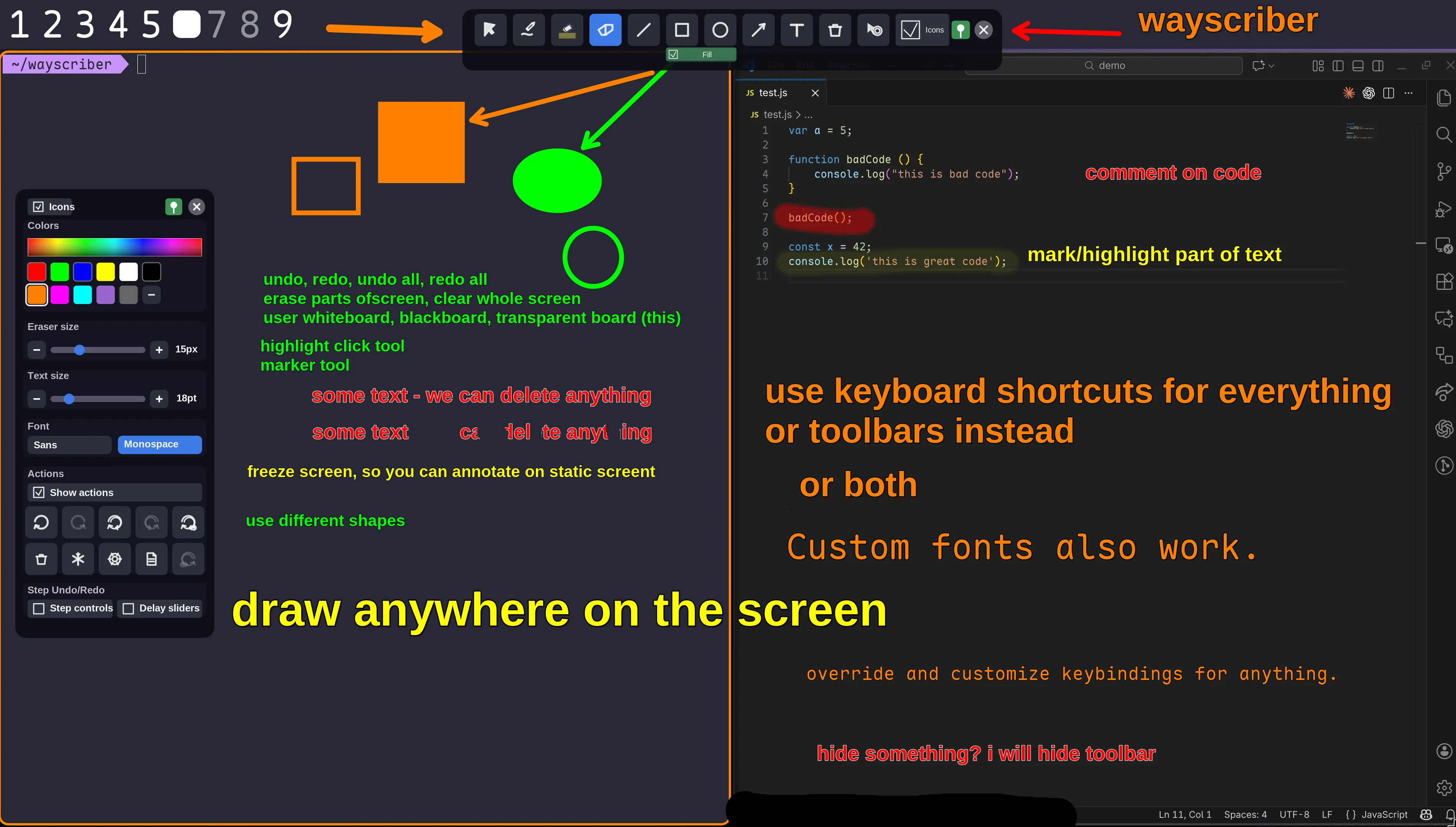
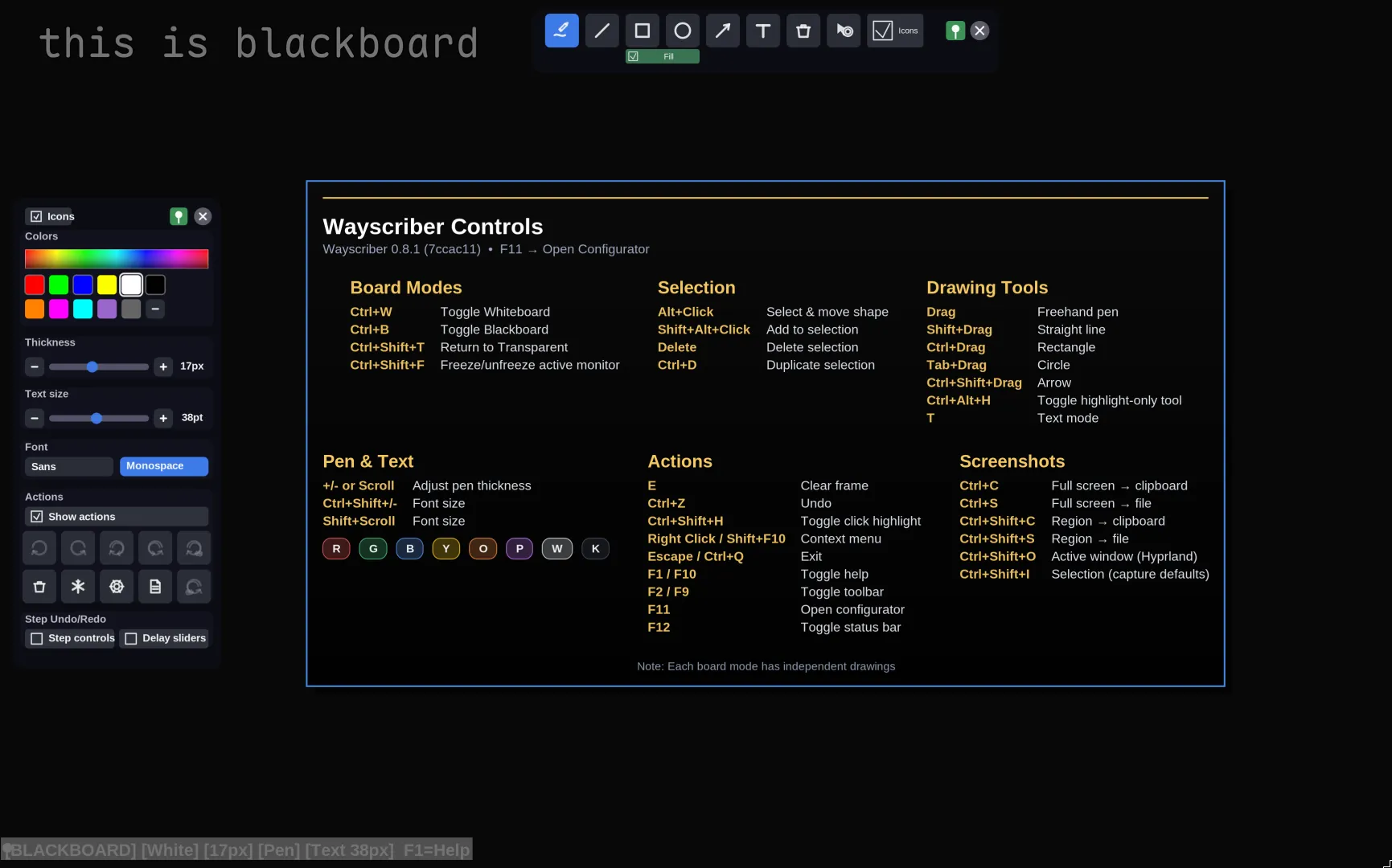
- Quick Start
- Why wayscriber?
- Features
- Installation
- Usage
- Getting Help
- Controls Reference
- Configuration
- Troubleshooting
- Contributing
- Roadmap
- Additional Information
- License & Credits
Pick the block for your distro. Repo, AUR, and Nix installs are the best default for CLI users because they use the normal system update flow. GitHub .deb/.rpm downloads are one-off installs; use them only when you do not want to add a repo.
Also use this path for Linux Mint, Pop!_OS, and other Debian-based distros.
sudo apt update
sudo apt install curl gpg
sudo install -d -m 0755 /usr/share/keyrings
curl -fsSL https://wayscriber.com/apt/WAYSCRIBER-GPG-KEY.asc | gpg --dearmor | sudo tee /usr/share/keyrings/wayscriber.gpg > /dev/null
echo "deb [signed-by=/usr/share/keyrings/wayscriber.gpg] https://wayscriber.com/apt stable main" | sudo tee /etc/apt/sources.list.d/wayscriber.list
sudo apt update
sudo apt install wayscriber
# Optional GUI configurator:
sudo apt install wayscriber-configuratorAlso use this path for Rocky Linux, AlmaLinux, Nobara, and other RPM-based distros.
cat <<'EOF' | sudo tee /etc/yum.repos.d/wayscriber.repo
[wayscriber]
name=Wayscriber Repo
baseurl=https://wayscriber.com/rpm
enabled=1
gpgcheck=1
repo_gpgcheck=1
gpgkey=https://wayscriber.com/rpm/RPM-GPG-KEY-wayscriber.asc
EOF
sudo dnf clean all
sudo dnf install wayscriber
# Optional GUI configurator:
sudo dnf install wayscriber-configuratorAlso use this path for Manjaro, CachyOS, and other Arch-based distros.
yay -S wayscriber-bin    # prebuilt binary
# or:
yay -S wayscriber        # build from source
# Optional GUI configurator:
yay -S wayscriber-configurator
Use your preferred AUR helper if you do not use yay.
nix run github:devmobasa/wayscriber -- --active
# or install to your profile:
nix profile install github:devmobasa/wayscriber
wayscriber --active
# Optional GUI configurator:
nix profile install github:devmobasa/wayscriber#wayscriber-configurator
Unpinned GitHub flake URLs follow the default branch. To run or install a specific release, pin the tag, for example:
nix run 'github:devmobasa/wayscriber?ref=v0.9.19' -- --active
nix profile install 'github:devmobasa/wayscriber?ref=v0.9.19'
nix profile install 'github:devmobasa/wayscriber?ref=v0.9.19#wayscriber-configurator'
For browser downloads, see No terminal install. For source builds, see From Source.
After a package-manager install:
wayscriber --version
wayscriber --active
If you used the nix run command above, it already launches the app without installing it to PATH.
Press F1 or F10 for help, Shift+F1 for quick reference, Ctrl+K for the command palette, and Escape to hide or exit.
Daemon mode is preferred for daily use because toggles are faster and session state survives between activations.
systemctl --user enable --now wayscriber.service
wayscriber --daemon-toggle
Bind wayscriber --daemon-toggle to a global shortcut in your compositor or desktop environment. Ubuntu GNOME users: Super+G is a good default because Super+D is often reserved.
For distro-specific package details, see Installation. For keybinding examples and daemon behavior, see Usage.
- Annotate live over any app without disrupting your workflow
- Professional presentation tools — presenter mode, numbered callouts, click highlights, screen freeze, zoom
- Persistent sessions that survive restarts
- Native Wayland performance with ZoomIt-like controls
- Lightweight daemon with instant toggle via keybind
| Platform | Status | Notes |
|---|---|---|
| Wayland (layer-shell) | ✅ Supported | Hyprland, Sway, River, Wayfire, Niri/Cosmic, Plasma/KWin |
| GNOME | Portal fallback; overlay windowed | |
| X11 | ❌ | Not supported |
Tested environments
- Ubuntu 25.10 GNOME (xdg fallback)
- Fedora 43 KDE (Plasma, layer-shell)
- Fedora 43 GNOME (xdg fallback)
- Debian 13.2 KDE (Plasma, layer-shell)
- Debian 13.2 GNOME (xdg fallback)
- CachyOS 2025-August KDE (Plasma, layer-shell)
- Hyprland on Arch (layer-shell)
- Niri on Arch (layer-shell)
- Freehand pen, highlighter, eraser (circle/rect)
- Shapes: lines, rectangles, ellipses (with fill toggle)
- Arrows with optional auto-numbered labels
- Step markers for walkthroughs
- Multiline text & sticky notes with smoothing
- Selection: Alt-drag, V tool, properties panel
- Duplicate (Ctrl+D), delete (Delete), undo/redo
- Color picker, palettes, size via hotkeys or scroll
- Render color profiles for print/projector/light-theme preview
- Radial menu at cursor (Middle-click): quick tool/color selection + scroll size adjust
- Named boards with transparent overlay or custom backgrounds
- Isolated pages per board with auto-contrast pens
- Pan solid boards with Space + left-drag; reset from the context menu
- Jump slots: Ctrl+Shift+1..9
- Toggle whiteboard/blackboard
- Board picker: Ctrl+Shift+B
- Full-screen saves, active-window grabs, region capture
- Copy to clipboard or save to file
- Uses
grim,slurp,wl-clipboard(installed automatically by deb/rpm/AUR packages; fallback: xdg-desktop-portal)
- Opt-in per board/monitor canvas + tool state restore
- CLI overrides:
--resume-session/--no-resume-session - Tray checkmark flips config on disk
- Floating toolbars (pin/unpin: F2/F9)
- Preset slots, icon or text modes
- Color picker with extended palettes
- Status bar, board/page controls
- Help overlay (F1), quick reference (Shift+F1)
- Command palette (Ctrl+K)
- Move overlay focus between monitors: Ctrl+Alt+Shift+←/Ctrl+Alt+Shift+→
- Toolbars and status bar follow the active output when output focus changes
- Optional active output badge in status bar (
ui.active_output_badge) - Output-scoped session restore when
session.per_output = true - GNOME fallback output pinning via
ui.preferred_outputorWAYSCRIBER_XDG_OUTPUT
- Save tool + color + size (plus fill/opacity/text) into 3-5 slots
- Apply: 1-5
- Save: Shift+1-Shift+5
- Click highlights with configurable colors/radius/duration
- Persistent ring while click highlight tool is active
- Presenter mode (Ctrl+Shift+M): hides UI, forces click highlights
- Light passthrough mode (layer-shell): Ctrl+Shift+L enters from the focused overlay; compositor/global shortcuts such as
wayscriber --light-togglekeep control reliable while input is passed through - Screen freeze (Ctrl+Shift+F): pause display while apps run
- Numbered callouts: auto-numbered arrow labels, step markers
- Reset shortcuts (Ctrl+Shift+R for arrow labels): see Controls Reference
- Zoom: spotlight details with ZoomIt-style controls
- Zoom in/out: Ctrl+Alt + scroll or Ctrl+Alt++/Ctrl+Alt+-
- Reset: Ctrl+Alt+0
- Lock view: Ctrl+Alt+L
- Pan: middle drag or arrow keys
- Right-click menu: Zoom → Zoom In / Zoom Out / Reset Zoom
| You want | Use |
|---|---|
| Fast CLI install with auto-updates on Debian/Ubuntu/Mint/Pop!_OS | Debian / Ubuntu repo |
| Fast CLI install with auto-updates on Fedora/RHEL/Rocky/Alma/Nobara | Fedora / RHEL repo |
| Arch, Manjaro, CachyOS, or another Arch-based distro | AUR, preferably wayscriber-bin for the prebuilt package |
Nix profile, nix run, or NixOS flake setup |
NixOS / Nix |
| Browser-based install without adding a repo | GitHub Releases |
| Hacking on wayscriber or building a local binary | From Source |
Install the main wayscriber package first. wayscriber-configurator is optional and does not include the wayscriber binary.
If you prefer downloading files in a browser instead of using package-manager commands:
- Open latest release.
- Install the main app package that matches your distro:
- wayscriber-amd64.deb (Ubuntu, Debian, Linux Mint, Pop!_OS, and other Debian-based distros)
- wayscriber-x86_64.rpm (Fedora, RHEL, Rocky Linux, AlmaLinux, Nobara, and other RPM-based distros)
- Optional: install the configurator package (
wayscriber-configurator) after wayscriber:- wayscriber-configurator-amd64.deb
- wayscriber-configurator-x86_64.rpm
- Note:
wayscriber-configuratoris a separate app and does not installwayscriber.
- Launch Wayscriber from your application menu/launcher.
- Optional later: switch to daemon mode (preferred) using the steps in Usage.
Release packages are one-off installs (no auto-updates). Use repo installs below for automatic updates.
sudo apt update
sudo apt install curl gpg
sudo install -d -m 0755 /usr/share/keyrings
curl -fsSL https://wayscriber.com/apt/WAYSCRIBER-GPG-KEY.asc | gpg --dearmor | sudo tee /usr/share/keyrings/wayscriber.gpg > /dev/null
echo "deb [signed-by=/usr/share/keyrings/wayscriber.gpg] https://wayscriber.com/apt stable main" | sudo tee /etc/apt/sources.list.d/wayscriber.list
sudo apt update
sudo apt install wayscriber
# Optional GUI configurator:
sudo apt install wayscriber-configurator
One-off .deb (no auto-updates):
wget -O wayscriber-amd64.deb https://github.com/devmobasa/wayscriber/releases/latest/download/wayscriber-amd64.deb
sudo apt install ./wayscriber-amd64.deb
Configurator .deb (optional):
wget -O wayscriber-configurator-amd64.deb https://github.com/devmobasa/wayscriber/releases/latest/download/wayscriber-configurator-amd64.deb
sudo apt install ./wayscriber-configurator-amd64.debcat <<'EOF' | sudo tee /etc/yum.repos.d/wayscriber.repo
[wayscriber]
name=Wayscriber Repo
baseurl=https://wayscriber.com/rpm
enabled=1
gpgcheck=1
repo_gpgcheck=1
gpgkey=https://wayscriber.com/rpm/RPM-GPG-KEY-wayscriber.asc
EOF
sudo dnf clean all
sudo dnf install wayscriber
# Optional GUI configurator:
sudo dnf install wayscriber-configuratorOne-off .rpm (no auto-updates):
wget -O wayscriber-x86_64.rpm https://github.com/devmobasa/wayscriber/releases/latest/download/wayscriber-x86_64.rpm
sudo dnf install ./wayscriber-x86_64.rpm
Configurator .rpm (optional):
wget -O wayscriber-configurator-x86_64.rpm https://github.com/devmobasa/wayscriber/releases/latest/download/wayscriber-configurator-x86_64.rpm
sudo dnf install ./wayscriber-configurator-x86_64.rpmyay -S wayscriber-bin # prebuilt binary
# or:
yay -S wayscriber # build from source
# Optional GUI configurator:
yay -S wayscriber-configuratorRun without installing:
nix run github:devmobasa/wayscriber -- --activeInstall to profile:
nix profile install github:devmobasa/wayscriber
# Optional GUI configurator:
nix profile install github:devmobasa/wayscriber#wayscriber-configurator
Add to NixOS configuration (flake-based):
# flake.nix
{
  inputs = {
    nixpkgs.url = "github:NixOS/nixpkgs/nixos-unstable";
    wayscriber.url = "github:devmobasa/wayscriber";
  };

  outputs = { nixpkgs, wayscriber, ... }: {
    nixosConfigurations.myhost = nixpkgs.lib.nixosSystem {
      system = "x86_64-linux";
      modules = [{
        environment.systemPackages = [
          wayscriber.packages.x86_64-linux.default
        ];
      }];
    };
  };
}
Development shell:
nix develop github:devmobasa/wayscriberUnpinned GitHub flake URLs follow the default branch. Pin a release tag when you want reproducible release installs:
nix run 'github:devmobasa/wayscriber?ref=v0.9.19' -- --active
nix profile install 'github:devmobasa/wayscriber?ref=v0.9.19'
nix profile install 'github:devmobasa/wayscriber?ref=v0.9.19#wayscriber-configurator'Dependencies:
Rust 1.95 or newer, plus native packages:
# Debian/Ubuntu
sudo apt-get install libcairo2-dev libwayland-dev libpango1.0-dev

# Fedora
sudo dnf install gcc gcc-c++ make pkgconf-pkg-config cairo-devel wayland-devel pango-devel libxkbcommon-devel cairo-gobject-devel
Build:
git clone https://github.com/devmobasa/wayscriber.git
cd wayscriber
cargo build --release
# Binary: target/release/wayscriber
Optional install script:
./tools/install.shwl-clipboard, grim, and slurp are installed automatically by deb/rpm/AUR packages.
If you build from source or use the tarball, install them manually:
sudo apt-get install wl-clipboard grim slurp   # Debian/Ubuntu
sudo dnf install wl-clipboard grim slurp       # Fedora
See https://wayscriber.com/docs/ for the latest documentation.
Recommended for daily use: faster toggle, better workflow, and session persistence.
Run wayscriber in the background and toggle with a keybind:
systemctl --user enable --now wayscriber.serviceNo-CLI setup path:
- Open
wayscriber-configurator - Go to the
Daemontab - Click
Install/Update Service, thenEnable + Start - Set a shortcut and click
Apply Shortcut- GNOME: writes a GNOME custom shortcut (
wayscriber --daemon-toggle) - KDE/Plasma: writes systemd drop-in env (
WAYSCRIBER_PORTAL_SHORTCUT) for portal global shortcuts
- GNOME: writes a GNOME custom shortcut (
Add keybinding:
Hyprland:
bind = SUPER, D, exec, wayscriber --daemon-toggle
Use only one toggle binding. Duplicate SUPER+D entries can fire twice and immediately undo the toggle.
If your compositor shortcut environment does not resolve wayscriber from PATH, use the absolute path from command -v wayscriber instead.
Reload your config:
hyprctl reloadGNOME (Ubuntu/Debian/Fedora):
- Open
Settings -> Keyboard -> Keyboard Shortcuts. - Scroll down to
Custom Shortcuts, click+. - Name:
Wayscriber Toggle. - Command:
wayscriber --daemon-toggle. - Set a shortcut key (recommended on Ubuntu GNOME: Super+G; Super+D is often already in use).
KDE Plasma:
- Open
Settings -> Keyboard -> Shortcuts. - Add new
Command or Script. - Name:
Wayscriber Toggle. - Command:
wayscriber --daemon-toggle. - Assign a key (for example Meta+Shift+D).
Other desktops/window managers:
- Bind
wayscriber --daemon-toggleto any global shortcut key you prefer.
Light passthrough controls:
- Ctrl+Shift+L is a Wayscriber in-overlay shortcut, not an OS/global shortcut. It works while the overlay is focused.
- Once light passthrough is active, normal keyboard and pointer input goes to the app underneath. Bind compositor/global shortcuts to
wayscriber --light-toggleandwayscriber --light-draw-togglefor reliable control. - Use
wayscriber --light-draw-onon press andwayscriber --light-draw-offon release for draw-while-held shortcuts.
Use --no-tray or WAYSCRIBER_NO_TRAY=1 if you don't have a system tray; otherwise right-click the tray icon for options:
- Toggle overlay visibility
- Freeze/unfreeze the current overlay
- Capture full screen / active window / region
- Toggle the help overlay
- Flip session resume on/off (writes to config)
- Clear saved session data
- Open the log folder
- Open configurator / open config file / quit
Troubleshooting tray icons:
- If the tray icon is blank or the menu shows square placeholders (notably Noctalia/Quickshell), start the daemon with
WAYSCRIBER_TRAY_FORCE_PIXMAP=1.
Alternative — use compositor autostart instead of systemd:
exec-once = wayscriber --daemon
bind = SUPER, D, exec, wayscriber --daemon-toggle
Service commands:
systemctl --user status wayscriber.service
systemctl --user restart wayscriber.service
journalctl --user -u wayscriber.service -fLaunch wayscriber when you need it, then exit:
wayscriber --active
wayscriber --active --mode whiteboard
wayscriber --active --mode blueprint
wayscriber --freeze   # start with screen frozen
Bind to a key (Hyprland example):
bind = SUPER, D, exec, wayscriber --active
Press F1/F10 for help or Shift+F1 for quick reference. Ctrl+K opens the command palette; F11 opens the configurator; Escape or Ctrl+Q exits.
| Shortcut | Action |
|---|---|
| Ctrl+Shift+P | Capture full screen (respects capture.copy_to_clipboard) |
| Ctrl+Shift+O | Capture active window (respects capture.copy_to_clipboard) |
| Ctrl+Shift+I | Capture selection (respects capture.copy_to_clipboard) |
| Ctrl+C | Copy full screen to clipboard |
| Ctrl+S | Save full screen as PNG |
| Ctrl+Shift+C | Select region → clipboard |
| Ctrl+Shift+S | Select region → save PNG |
| Ctrl+6 | Region → clipboard (explicit) |
| Ctrl+Alt+6 | Region → save PNG (explicit) |
| Ctrl+Alt+O | Open last capture folder |
Requires wl-clipboard, grim, slurp (installed automatically by deb/rpm/AUR packages). Falls back to xdg-desktop-portal if missing.
Use --exit-after-capture / --no-exit-after-capture to override whether the overlay closes after a capture. --about opens the About window.
- Help overlay: F1 or F10
- Quick reference: Shift+F1
- Command palette: Ctrl+K (search
monitorordisplayfor output actions) - Full docs: https://wayscriber.com/docs/
Press F1 for the complete in-app cheat sheet.
| Action | Key |
|---|---|
| Freehand pen | Drag |
| Arrow | Ctrl+Shift + drag |
| Rectangle | Ctrl + drag |
| Text mode | T |
| Select/move | Alt + drag or V |
| Undo / Redo | Ctrl+Z / Ctrl+Y |
| Color keys | R G B Y O P W K |
| Size | + / - or scroll |
| Help | F1 |
| Exit | Escape |
All Drawing Tools
| Action | Key/Mouse |
|---|---|
| Freehand pen | Drag with left mouse button |
| Straight line | Shift + drag |
| Rectangle | Ctrl + drag |
| Ellipse/Circle | Tab + drag |
| Arrow | Ctrl+Shift + drag |
| Step marker tool | Toolbar (bindable) |
| Highlight brush | Ctrl+Alt+H |
| Text mode | T, Click to position, type, Enter to finish |
| Sticky note | N, Click to place, type, Enter to finish |
Drag modifier mappings are configurable in config.toml via [drawing] (drag_tool, shift_drag_tool, ctrl_drag_tool, ctrl_shift_drag_tool, tab_drag_tool) or in the configurator Drawing tab. For per-button workflows, use [drawing.drag_tools.left], [drawing.drag_tools.right], and [drawing.drag_tools.middle]; each binding can set a tool and optional color.
Boards
| Action | Key |
|---|---|
| Toggle Whiteboard | Ctrl+W |
| Toggle Blackboard | Ctrl+B |
| Return to Transparent | Ctrl+Shift+T |
| Switch board slot | Ctrl+Shift+1..9 |
| Previous/next output | Ctrl+Alt+Shift + ←/→ |
| Previous/next board | Ctrl+Shift + ←/→ |
| New board | Ctrl+Shift+N |
| Delete board | Ctrl+Shift+Delete |
| Board picker | Ctrl+Shift+B |
| Pan solid boards | Hold Space + left-drag |
| Reset solid-board pan | Right-click → Reset Canvas Position |
Colors & Sizes
| Color | Key |
|---|---|
| Red | R |
| Green | G |
| Blue | B |
| Yellow | Y |
| Orange | O |
| Pink | P |
| White | W |
| Black | K |
| Action | Key |
|---|---|
| Increase thickness | + / = / scroll down |
| Decrease thickness | - / _ / scroll up |
| Increase font size | Ctrl+Shift++ / Shift + scroll down |
| Decrease font size | Ctrl+Shift+- / Shift + scroll up |
| Increase marker opacity | Ctrl+Alt + ↑ |
| Decrease marker opacity | Ctrl+Alt + ↓ |
Selection & Arrange
| Action | Key |
|---|---|
| Duplicate selection | Ctrl+D |
| Copy selection | Ctrl+Alt+C |
| Paste selection or copied PNG/JPEG image | Ctrl+Alt+V |
| Delete selection | Delete |
| Bring to front/back | ] / [ |
| Nudge selection | Arrow keys (large: PageUp/PageDown) |
| Move to edges | Home/End / Ctrl+Home/Ctrl+End |
| Select/move shapes | Hold Alt + drag |
| Select tool | V |
| Add to selection | Shift + click |
| Selection properties | Ctrl+Alt+P |
Pages
| Action | Key |
|---|---|
| Previous/next page | Ctrl+Alt + ←/→ or Ctrl+Alt + PageUp/PageDown |
| New page | Ctrl+Alt+N |
| Duplicate page | Ctrl+Alt+D |
| Delete page | Ctrl+Alt+Delete |
Editing & UI
| Action | Key |
|---|---|
| Undo | Ctrl+Z |
| Redo | Ctrl+Shift+Z / Ctrl+Y |
| Select all | Ctrl+A |
| Eraser | D |
| Toggle eraser mode | Ctrl+Shift+E |
| Clear all | E |
| Cancel action | Right-click (while drawing) / Escape |
| Context menu | Right-click (idle) / Shift+F10 / Menu, Arrow keys + Enter/Space |
| Edit selected text/note | Enter (single selection) |
| Toggle toolbars | F2 / F9 |
| Help overlay | F1 / F10 |
| Quick reference | Shift+F1 |
| Configurator | F11 |
| Command palette | Ctrl+K |
| Radial menu | Middle-click (idle) open/close; Left-click select; Right-click/Escape dismiss; scroll adjusts active tool size |
| Status bar | F4 / F12 |
| Apply preset slot | 1 - 5 |
| Save preset slot | Shift+1 - Shift+5 |
| Toggle click highlight | Ctrl+Shift+H |
| Toggle light passthrough (in-overlay) | Ctrl+Shift+L |
| Reset arrow labels | Ctrl+Shift+R |
| Toggle freeze | Ctrl+Shift+F |
| Zoom in/out | Ctrl+Alt + scroll / Ctrl+Alt++ / Ctrl+Alt+- |
| Reset zoom | Ctrl+Alt+0 |
| Toggle zoom lock | Ctrl+Alt+L |
| Pan zoom view | Middle drag / Arrow keys |
| Exit | Escape / Ctrl+Q |
For light passthrough, Ctrl+Shift+L is the default Wayscriber-level binding only while the overlay has focus. Use compositor/global shortcuts that run wayscriber --light-toggle and related light-draw commands once passthrough is active.
Arrow labels can auto-number when enabled in the arrow toolbar; reset with Ctrl+Shift+R. Step markers auto-increment and reset from the toolbar (or bind reset_step_markers in config.toml). Preset slots can be saved/cleared from the toolbar; edit names and advanced fields in config.toml. Blur has no default keyboard shortcut; bind select_blur_tool in config.toml if you want direct keyboard access.
Config file: ~/.config/wayscriber/config.toml
Create from example:
mkdir -p ~/.config/wayscriber
cp config.example.toml ~/.config/wayscriber/config.toml
Or use the GUI configurator:
wayscriber-configurator # or press F11[drawing]
default_color = "red"
default_thickness = 3.0
[drawing.drag_tools.right]
drag_tool = "pen"
drag_color = "blue"
[presets]
# slot_count: 3-5
slot_count = 5
[presets.slot_1]
name = "Red pen"
tool = "pen"
color = "red"
size = 3.0
[performance]
buffer_count = 3
enable_vsync = true
max_fps_no_vsync = 60
ui_animation_fps = 30
[ui]
# status bar visibility and position
[boards]
# named boards + backgroundsEnable via configurator (F11 → Session tab), CLI flags, or the tray checkmark (writes to config).
wayscriber --resume-session      # force resume (persist/restore all boards + history/tool state)
wayscriber --no-resume-session   # disable resume for this run
wayscriber --session-info        # inspect saved sessions
wayscriber --clear-session       # remove stored boards
Notes:
- When
restore_tool_stateis enabled (default), the last-used tool settings (including arrow head placement) override config defaults on startup. Disable it in the Session tab or clear the session to force config values.
Tablet support (zwp_tablet_v2) ships in default builds and is enabled at runtime by default:
[tablet]
enabled = true
pressure_enabled = true
min_thickness = 1.0
max_thickness = 8.0
It works out of the box in default builds. Set [tablet].enabled = false in config.toml to opt out. To build without tablet support: cargo build --release --no-default-features (or remove the tablet-input feature).
See https://wayscriber.com/docs/ for the full reference.
User services don't start at boot by default. Enable lingering:
loginctl enable-linger $USEROr use compositor autostart instead:
exec-once = wayscriber --daemon
systemctl --user status wayscriber.service
journalctl --user -u wayscriber.service -f
systemctl --user restart wayscriber.serviceIf the overlay appears blurry instead of transparent on KDE Plasma:
Cause: The "Better Blur DX" effect (or similar blur effects) may blur wayscriber's transparent overlay.
Solution (Option 1 - Configure Better Blur DX):
- Open System Settings → Window Management → Desktop Effects
- Click the configure button next to "Better Blur DX"
- Go to the Force Blur tab
- Add
wayscriberto the window class list - Make sure
Blur all except matchingis selected - Click Apply
Solution (Option 2 - Use standard blur):
- Disable "Better Blur DX" in Desktop Effects
- Enable the standard "Blur" effect instead
Note: To find wayscriber's window class:
sleep 2; qdbus org.kde.KWin /KWin queryWindowInfo | grep resourceClassThen open wayscriber before the sleep ends.
- Verify Wayland session:
echo $WAYLAND_DISPLAY - Ensure compositor supports
wlr-layer-shell - Run with logs:
RUST_LOG=info wayscriber --active
ls -la ~/.config/wayscriber/config.toml
RUST_LOG=info wayscriber --active # watch for TOML errorsCommon toggles:
WAYSCRIBER_TOOLBAR_DRAG_PREVIEW=0disables inline toolbar drag preview (default: on)WAYSCRIBER_TOOLBAR_POINTER_LOCK=1enables pointer-lock drag path (default: on)WAYSCRIBER_TOOLBAR_DRAG_THROTTLE_MS=12throttles toolbar drag updates (default: 12; set 0 to disable)WAYSCRIBER_DEBUG_TOOLBAR_DRAG=1enables toolbar drag logging (default: off)WAYSCRIBER_DEBUG_TOOLBAR_COLOR=1enables toolbar color picker logging (default: off)WAYSCRIBER_FORCE_INLINE_TOOLBARS=1forces inline toolbars on Wayland (default: off)WAYSCRIBER_NO_TRAY=1disables the tray icon (default: tray enabled)
See docs/CONFIG.md for the full list.
[performance]
buffer_count = 2
enable_vsync = true
ui_animation_fps = 30Contribution principles: wayscriber is shared as a gift exchange, not a contract. Requests are welcome, but there is no guaranteed timeline or support obligation. For the full principles, see https://wayscriber.com/docs/ethos/gift-exchange.html
See CONTRIBUTING.md for development setup, project structure, and workflow notes.
- Native Wayland layer-shell
- Daemon mode with system tray
- Multiple customizable boards/backgrounds
- Session persistence (with CLI override + tray config toggle)
- Highlighter & eraser tools
- Additional shapes (filled shapes)
- Color picker
- Render color profiles
- Zoom (ZoomIt-style controls)
- Presets (tool/color/size slots)
- Sticky notes
- Board pages (multi-page boards)
- Presenter mode
- Command palette
- Numbered callouts (incrementing arrow labels)
- Multi-monitor support
- Save annotations to image
- Color picker integration with captures/export
See Satty for capture → annotate → save workflows. wayscriber is designed as an always-available drawing layer.
Comparison with ZoomIt
| Feature | ZoomIt (Windows) | wayscriber |
|---|---|---|
| Drawing tools | ✅ | ✅ |
| Boards/Backgrounds | ✅ | ✅ |
| Multi-line text | ❌ | ✅ |
| Custom fonts | ❌ | ✅ |
| Config file | ❌ | ✅ |
| Help overlay | ❌ | ✅ |
| Zoom | ✅ | ✅ |
| Break timer | ✅ | ❌ |
MIT License — see LICENSE
- Inspired by ZoomIt by Mark Russinovich
- Built for Linux (distros that use Wayland)
- Similar ideas from Gromit-MPX
- Uses Cairo and smithay-client-toolkit
Developed with AI assistance (ChatGPT, Codex, Claude Code).