SendMIDI is a multi-platform command-line tool makes it very easy to quickly send MIDI messages to MIDI devices from your computer.
All the heavy lifting is done by the wonderful JUCE library.
The project website is https://github.com/gbevin/SendMIDI
This tool is mainly intended for configuration or setup through Control Change, RPN and NRPN messages, but many other MIDI messages can be sent.
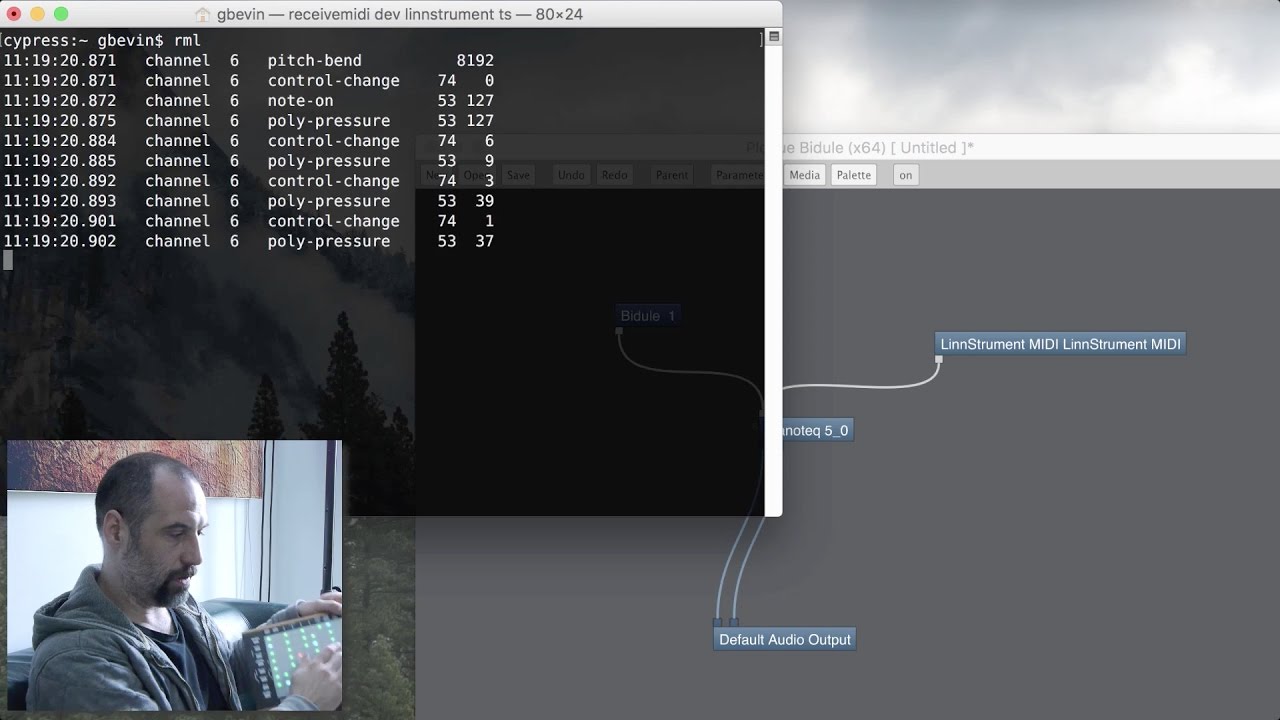
Here's a tutorial video about both SendMIDI and ReceiveMIDI, including some tips and tricks of how to use the command-line on macOS:
You can download pre-built binaries from the release section: https://github.com/gbevin/SendMIDI/releases
Since SendMIDI is free and open-source, you can also easily build it yourself. Just take a look into the Builds directory when you download the sources.
If you're using the macOS Homebrew package manager, you can install SendMIDI with:
brew install gbevin/tools/sendmidi
To use it, simply type "sendmidi" or "sendmidi.exe" on the command line and follow it with a series of commands that you want to execute. These commands have purposefully been chosen to be concise and easy to remember, so that it's extremely fast and intuitive to quickly shoot out a few MIDI messages.
These are all the supported commands:
  dev     name          Set the name of the MIDI output port
  virt    (name)        Use virtual MIDI port with optional name (Linux/macOS)
  list                  Lists the MIDI output ports
  panic                 Sends Note Offs, panic CCs, resets controllers & bend
  file    path          Loads commands from the specified program file
  dec                   Interpret the next numbers as decimals by default
  hex                   Interpret the next numbers as hexadecimals by default
  ch      number        Set MIDI channel for the commands (1-16), defaults to 1
  omc     number        Set octave for middle C, defaults to 3
  on      note velocity Send Note On with note (0-127) and velocity (0-127)
  off     note velocity Send Note Off with note (0-127) and velocity (0-127)
  pp      note value    Send Poly Pressure with note (0-127) and value (0-127)
  cc      number value  Send Control Change number (0-127) with value (0-127)
  cc14    number value  Send 14-bit CC number (0-31) with value (0-16383)
  pc      number        Send Program Change number (0-127)
  cp      value         Send Channel Pressure value (0-127)
  pb      value         Send Pitch Bend value (0-16383 or value/range)
  rpn     number value  Send RPN number (0-16383) with value (0-16383)
  nrpn    number value  Send NRPN number (0-16383) with value (0-16383)
  clock   bpm           Send 2 beats of MIDI Timing Clock for a BPM (1-999)
  mc                    Send one MIDI Timing Clock
  start                 Start the current sequence playing
  stop                  Stop the current sequence
  cont                  Continue the current sequence
  as                    Send Active Sensing
  rst                   Send Reset
  syx     bytes         Send SysEx from a series of bytes (no F0/F7 delimiters)
  syf     path          Send SysEx from a .syx file
  tc      type value    Send MIDI Time Code with type (0-7) and value (0-15)
  spp     beats         Send Song Position Pointer with beat (0-16383)
  ss      number        Send Song Select with song number (0-127)
  tun                   Send Tune Request
  mpe     zone range    Send MPE Configuration for zone (1-2) with range (0-15)
  mpp     input manager Configure MPE Profile initiator with MIDI input port
          members       name, a manager channel (1-15), and desired member
                        channel count (1-15, 0 to disable) (also uses MIDI
                        output port)
  mpetest               Send a sequence of MPE messages to test a receiver
  raw     bytes         Send raw MIDI from a series of bytes

Options:
  -h  or  --help        Print Help (this message) and exit
  --version             Print version information and exit
  --                    Read commands from standard input until it's closed
Alternatively, you can use the following long versions of the commands:
  device virtual decimal hexadecimal channel octave-middle-c note-on note-off
  poly-pressure control-change control-change-14 program-change
  channel-pressure pitch-bend midi-clock continue active-sensing reset
  system-exclusive system-exclusive-file time-code song-position song-select
  tune-request mpe-profile mpe-test raw-midi
By default, numbers are interpreted in the decimal system, this can be changed to hexadecimal by sending the "hex" command. Additionally, by suffixing a number with "M" or "H", it will be interpreted as a decimal or hexadecimal respectively.
The MIDI device name doesn't have to be an exact match. If SendMIDI can't find the exact name that was specified, it will pick the first MIDI output port that contains the provided text, irrespective of case.
Where notes can be provided as arguments, they can also be written as note names, by default from C-2 to G8 which corresponds to note numbers 0 to 127. By setting the octave for middle C, the note name range can be changed. Sharps can be added by using the '#' symbol after the note letter, and flats by using the letter 'b'.
In between commands, timestamps can be added in the format: HH:MM:SS.MIL, standing for hours, minutes, seconds and milliseconds (for example: 08:10:17.056). All the digits need to be present, possibly requiring leading zeros. When a timestamp is detected, SendMIDI ensures that the time difference since the previous timestamp has elapsed.
When a timestamp is prefixed with a plus sign, it's considered relative and will be processed as a time offset instead of an absolute time. For example +00:00:01.060 will execute the next command one second and 60 milliseconds later. For convenience, a relative timestamp can also be shortened to +SS.MIL (for example: +01.060).
Here are a few examples to get you started:
List all the available MIDI output ports on your system
sendmidi list
Switch the LinnStrument to User Firmware Mode by setting NRPN 245 to the value 1:
sendmidi dev "LinnStrument MIDI" nrpn 245 1
Light up LinnStrument column 5 on row 0 in red by setting CCs 20, 21, and 22 to the column, row and color:
sendmidi dev "LinnStrument MIDI" cc 20 5 cc 21 0 cc 22 1
Load the commands from a text file on your system and execute them, afterwards switch to the "Network Session 1" port and send it program change number 10:
sendmidi file path/to/some/text/file dev "Network Session 1" pc 10
Change parameters on a Yamaha FS1R over SysEx:
sendmidi dev "iConnectMIDI4+ DIN 1" hex syx 43 10 5e 10 00 10 00 7f
The text file that can be read through the "file" command can contain a list of commands and options, just like when you would have written them manually on the console (without the "sendmidi" executable). You can insert new lines instead of spaces and any line that starts with a hash (#) character is a comment.
For instance, this is a text file for one of the examples above:
dev "LinnStrument MIDI"
# set column 5 on row 0 to the red color
cc 20 5
cc 21 0
cc 22 1
To build SendMIDI on Linux you need a minimal set of packages installed beforehand, on Ubuntu this can be done with:
sudo apt install build-essential pkg-config libasound2-dev
After that, go to the LinuxMakeFile directory
cd Builds/LinuxMakeFile
and build the binary by typing make
make
The resulting binary will be in the Build/LinuxMakeFile/build directory and can be moved anywhere appropriate on your system, for instance into /usr/local/bin:
sudo mv build/sendmidi /usr/local/bin
The input of the SendMIDI tool is compatible with the ReceiveMIDI tool, allowing you to play MIDI message sequences that were stored earlier. By using Unix-style pipes on the command-line, it's even possible to chain the receivemidi and sendmidi commands in order to forward MIDI messages.
ReceiveMIDI can be downloaded from https://github.com/gbevin/ReceiveMIDI
If you want to route, filter, transform and convert MIDI messages between ports, take a look at RouteMIDI. It reads and writes the same text MIDI format as SendMIDI, so it slots into the same command-line pipes.
RouteMIDI can be downloaded from https://github.com/gbevin/RouteMIDI
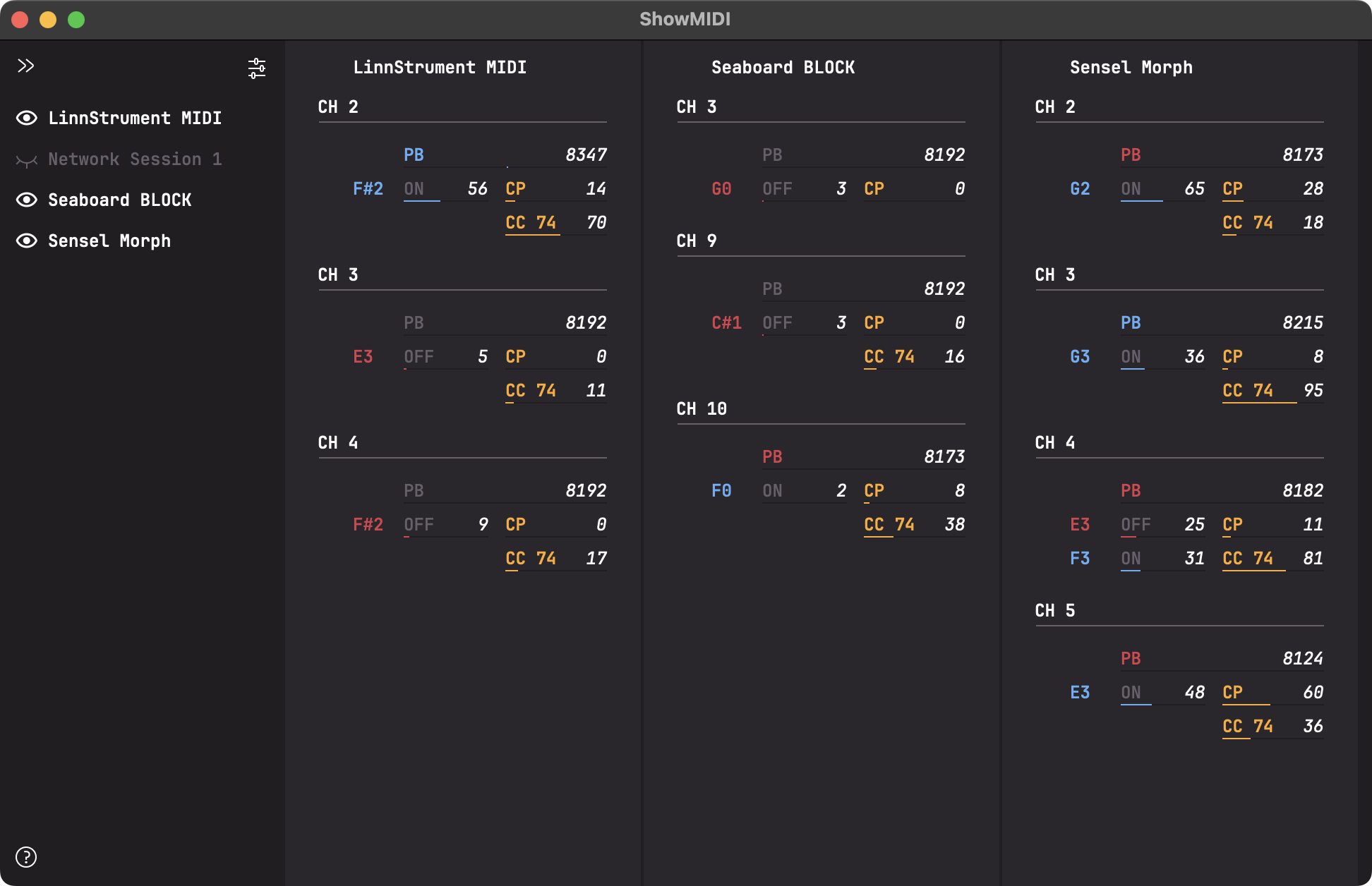
If you're looking for a beautiful GUI to effortlessly visualize MIDI activity without having to wade through log files, please take a look at my other tool ShowMIDI: https://github.com/gbevin/ShowMIDI